
News
Search Console Adds Multimodal Reporting for Visual Searches
Google adds Search Console reporting for Lens and other visual queries. Learn how to use the multimodal filter and review the pages receiving traffic.
Google announced a multimodal search type filter in Search results performance and Generative AI reporting, with a global rollout starting September 24.
Google announced multimodal search reporting in Search Console on September 24, 2026. The new filter gives publishers a way to examine traffic from visual searches, including Google Lens and Circle to Search.
According to the announcement, the reporting is available in Search results performance and the Generative AI features report. It covers Lens, Circle to Search on Android, image uploads to Google Search and Chrome’s “Search this image” action.
Google began rolling it out globally on September 24. Metrics appear for sites receiving traffic from those queries.
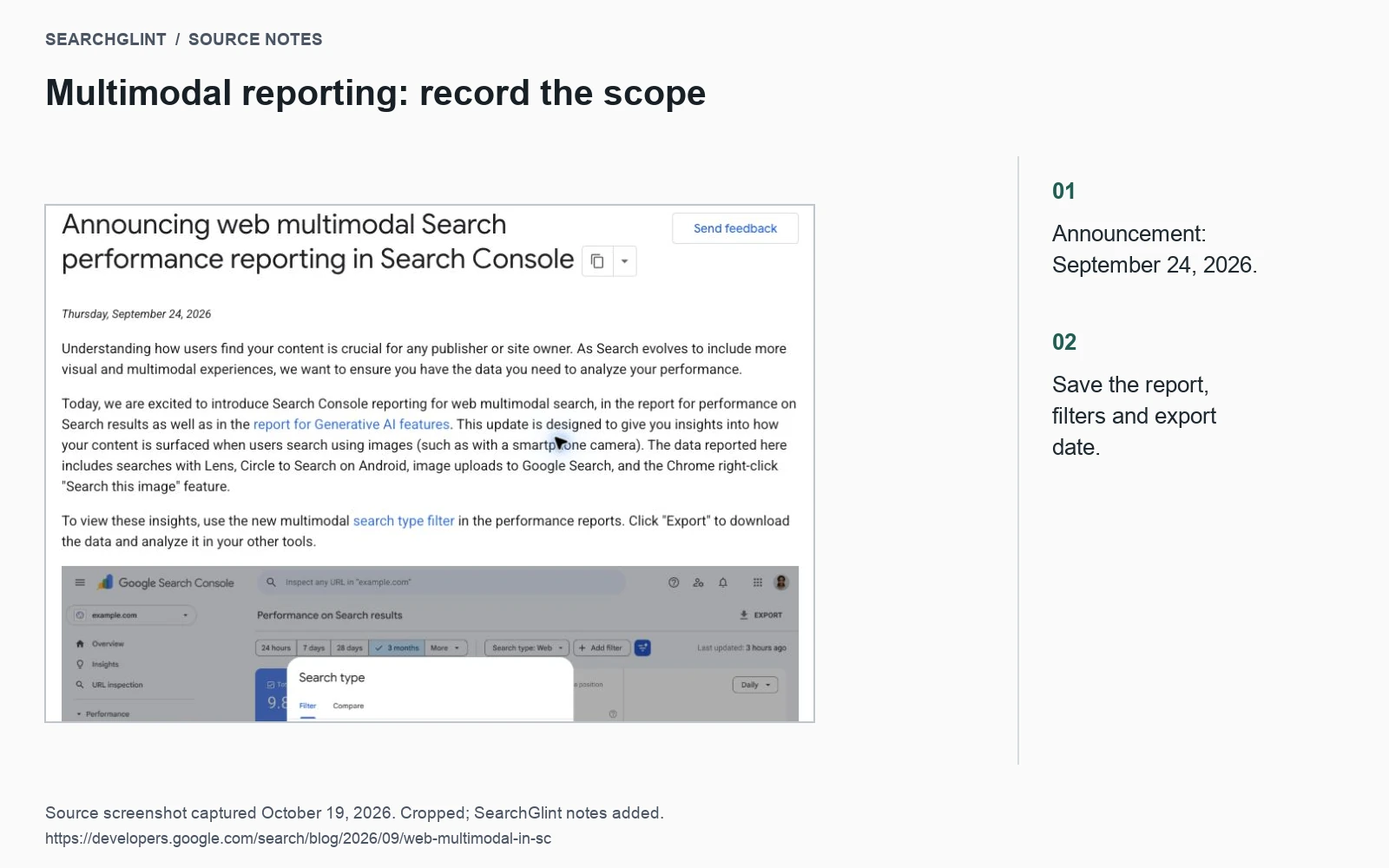
How to use the new filter
In the relevant performance report, select the multimodal search type filter and choose the period you want to examine. Use Export to save the data for further analysis.
Keep the report name and filters with the file. A useful filename or note includes the property, date range, search type, country, device and any page filter. That makes it easier to repeat the comparison next month.
If the filter is unavailable in your account, record that and check again later. If it is available with little data, extend the review period before drawing a trend from a handful of observations.
Find the landing pages worth reviewing
Begin with the pages receiving visual-search traffic. Look at the main image and ask what someone arriving through it would expect to learn. Then check how quickly the page supplies that answer.
A bicycle guide showing a particular connector is a good example. Someone searching with a photo of that part may need its name, dimensions or compatibility details. The page should make those details easy to find, with the image close to the relevant explanation.
This gives an editor a focused review task: improve the connection between the visual and the answer. A general instruction to “add more images” provides much less direction.
Keep Image search and multimodal reporting distinct
Preserve the exact report and filter names when you compare exports. An ordinary Image search report and a multimodal search slice answer different questions, even though both involve pictures.
Check the definitions before combining figures from different reports. They may overlap, so adding them together may overstate the audience. Search-performance data also needs additional measurement before it can support a revenue calculation.
Review a small group of pages first
Choose a few pages with enough data to be useful and give each one a clear improvement:
- Add identification details that the image raises but the text does not explain.
- Replace an unclear visual with a sharper, more relevant image.
- Move the explanation beside the image it describes.
- Make the key information readable on mobile.
- Check the image URL, ALT text and source credit.
Our image SEO guide covers these publishing checks. Record the change date, then compare a later period with the same report scope. If several page elements changed together, consider their combined effect when reviewing the result.
For sites already working on AI-search visibility, the added reporting can help identify which visual landing pages deserve attention. The useful output is a better-informed content queue: specific pages, specific questions and changes that readers can benefit from.
Sources
Image SEO: File Names, ALT Text and Screenshots explains the practical steps in more detail.