
Seo
Image SEO: File Names, ALT Text and Screenshots
Choose useful blog images, write clear ALT text, compress screenshots and check mobile readability with this practical image SEO guide.
On this page
Good image SEO starts with a visual that helps someone understand the page. A screenshot can show where to find a setting. A close-up can identify a part. A diagram can make a complicated step easier to follow. Choose that job first, then handle the filename, ALT text and file size.
For a blog, the most useful improvements are often straightforward: replace a generic illustration with a relevant screenshot, explain the important detail beside it, and make sure it stays readable on a phone.
Choose an image that answers a question
Before adding a visual, ask what the reader needs to see. In a repair guide, a close-up of the connector helps identify the part. A measurement diagram explains where to place the ruler. A workshop photograph may set the scene, but it cannot do either of those jobs.
Use the image close to the paragraph that discusses it. If the text refers to two measurement points, label those points in the diagram and explain the measurement in the body. Readers should be able to follow the instructions even when the image is small.
Keep screenshots focused
Capture the real page and crop out unrelated navigation, account information and empty space. Keep enough context to show which interface or document the reader is looking at. A small outline or numbered marker can draw attention to the relevant setting.
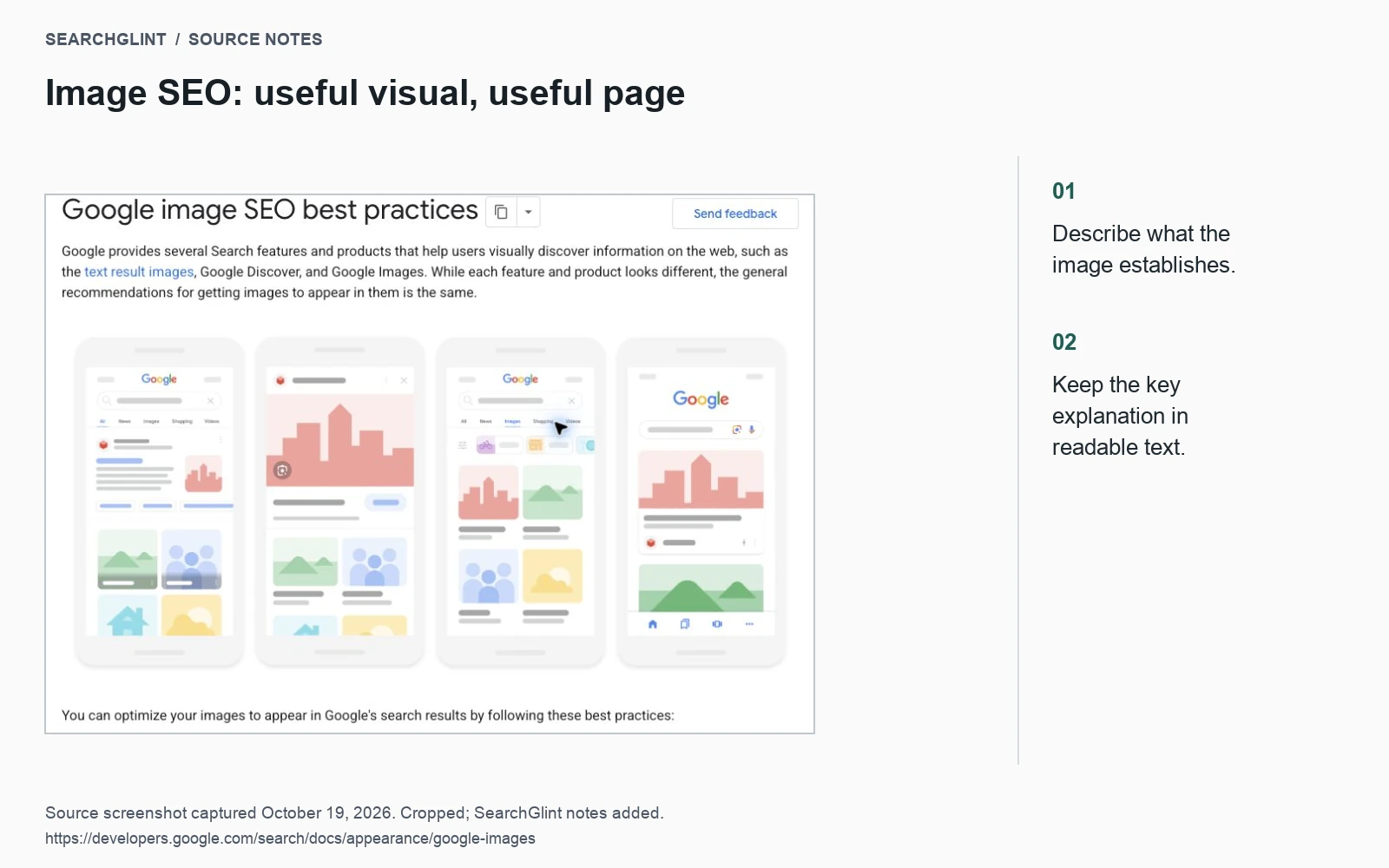
Use a short caption with a source link. Include a date when the image documents a changing interface or a news event. If a screenshot shows an example report from official help, identify the help page as the source.
For example, the indexing checklist uses Google’s URL Inspection documentation to explain the difference between stored indexing data and a live test.
Use descriptive filenames and HTML images
A filename such as connector-measurement.webp is easier to maintain than image-final-2.webp. Keep it short and specific to the asset.
Google’s image SEO documentation recommends relevant surrounding text and standard image elements. Use an img element for an important content image, and include a fallback src when using responsive sources:
<img src="/images/connector-measurement.webp"
     alt="Connector with the two measurement points marked"
     width="1200" height="800" loading="lazy">
The dimensions reserve space while the image loads. Lazy loading is useful for images farther down the article; test images near the top before applying it, especially if one is the main visual in the first screen.
Write ALT text for the image’s purpose
Describe the useful information in the image. “Connector with the two measurement points marked” tells the reader what the diagram contributes. “Best bicycle connector repair SEO guide” adds keywords while losing the explanation.
Keep source credits and longer interpretation in the caption or body. For a detailed chart, provide the important values and conclusions as selectable text. A purely decorative image can use an empty ALT attribute. W3C’s image accessibility tutorial also covers images used as links, whose descriptions need to make the destination or action clear.
Compress the file without losing the detail
Export at a size suited to the article layout, then compare the result at its actual display size. Screenshot text and thin lines can become unreadable before compression damage is obvious elsewhere in the image.
WebP is a useful option for many screenshots and photographs. Choose the format and quality setting by checking the output. For a detailed screenshot, let readers open the full-size image, and explain the key point in the caption so mobile visitors do not have to zoom just to understand it.
Check the published page
- Open the article on a phone and check the image beside its explanation.
- Confirm that the asset loads publicly and uses the intended ALT text.
- Check the title, description, canonical URL and social sharing image.
- Verify the source link and remove any staging URLs.
- Record the pages changed so you can review their search performance later.
Keep the reporting scope with that later review. Google Images data and the new Search Console multimodal filter describe different search contexts. Compare like-for-like periods and filters when assessing a change.
Watch: SEO for Google Images
Google Search Central explains image discovery and the role of the landing page in this presentation.